
Staff console
- API
- app
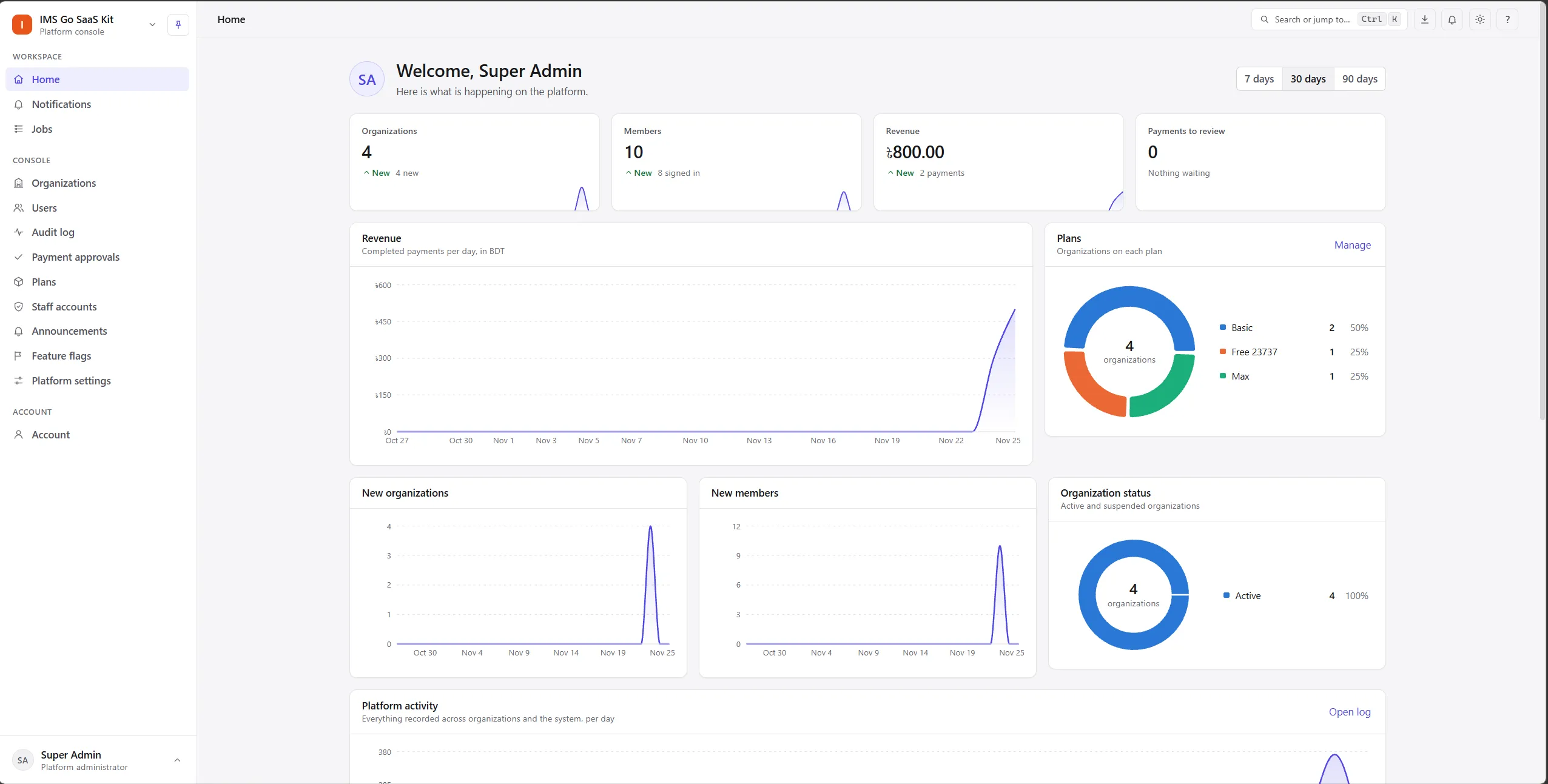
Staff accounts belong to no organization. When one signs in, the app shows the console
instead of a workspace: the whole platform, every organization on it, and the tools to support
them. The seeded superadmin@ims.com is a staff account.
Pages
| Page | Path | What it does | Needs |
|---|---|---|---|
| Home | / |
organizations, members, revenue, payments to review, plans, organization status and platform activity | — |
| Organizations | /console/organizations |
search, open, suspend or reactivate, change plan, impersonate | tenant.view.all |
| Users | /console/users |
every account on the platform; open one and log in as them | user.view.all |
| Audit log | /console/activity |
the system audit log across organizations, including every impersonation, with export | activity.view.all |
| Payment approvals | /console/approvals |
bank transfers and cash payments waiting for a decision | payment_approval.view.all |
| Plans | /console/plans |
the plan catalog: prices, features and limits | package.view.all |
| Staff accounts | /console/staff |
your team’s accounts and their roles | user.internal.create |
| Announcements | /console/announcements |
messages to every organization or chosen ones | announcement.view |
| Feature flags | /console/flags |
flags with rollout rules, per organization if needed | feature_flag.internal.update |
| Platform settings | /console/settings |
platform-wide settings, such as the bank details shown at checkout | setting.internal.view |
Staff permissions come from staff roles, like an organization’s. A Super-Admin passes every check.
Working inside an organization
Two ways to see what a customer sees, both recorded in the audit log under the staff member’s name:
- Impersonate an organization (from Organizations). You work inside it with your own staff
permissions; the workspace pages appear, and every change is recorded as made by you. The app
sends
X-Acting-Tenanton each call. - Log in as a user (from Users). Everything runs as that user, with their permissions, and
is recorded as done by staff on their behalf. The app sends
X-Acting-User.
A banner stays at the top while either is on, with a button to stop. See Tenancy for how the API resolves and audits acting requests.
Payments and plans
Organizations pick a plan on their Billing page. Free plans start at once; paid plans start when the payment is confirmed. bKash payments confirm automatically; bank transfers and cash arrive in Payment approvals, where staff approve or reject them with a note. See Billing.
Announcements
An announcement is a notice, a warning or a promotion, optionally with a button. Send it to every
organization or to chosen ones, now or on a schedule, and optionally by e-mail or push as well. The
announcement’s page shows views, clicks and closes per organization. The scheduler publishes and
expires announcements on time (make schedule locally).

Built and maintained by Innovix Matrix System
A software studio building custom software, web platforms and mobile apps. We use this kit for our own products, and we can help you ship yours on it.
© 2026 Innovix Matrix System. IMS Go SaaS Kit v0.2.0.