
Organization workspace
- API
- app
When someone from an organization signs in, they land in its workspace. Each page in the sidebar appears only when their role grants the permission next to it; the API checks the same permission on every call, so the sidebar is a convenience, never the security boundary.
Pages
| Page | Path | What it does | Needs |
|---|---|---|---|
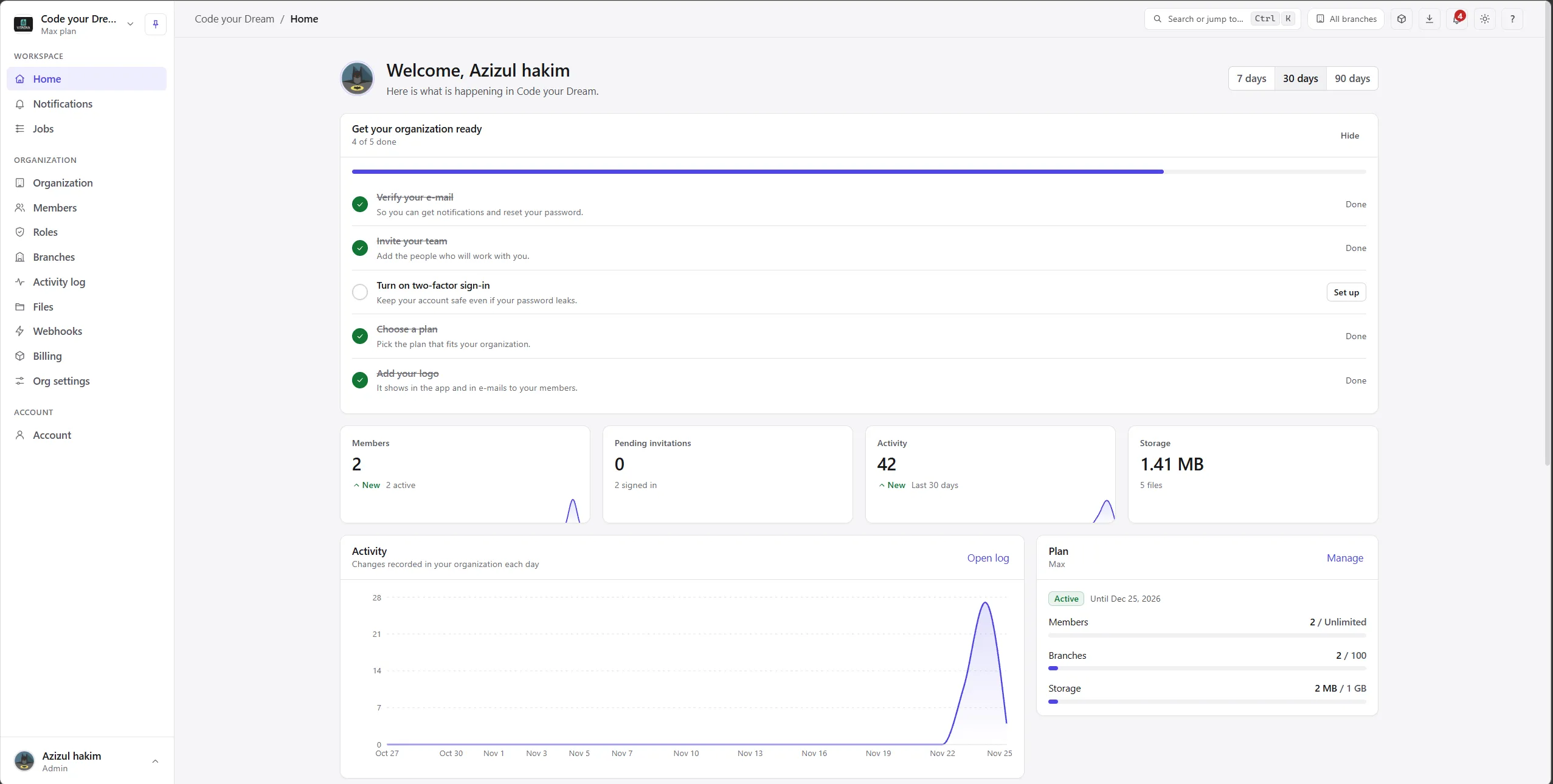
| Home | / |
a dashboard for the member’s role: members, invitations, activity trend, storage by type, plan usage, the most active members, frequent changes, quick actions and a getting-started checklist | — |
| Notifications | /notifications |
the notification feed, newest first, with read and unread | — |
| Jobs | /jobs |
exports and imports in the queue: progress, retry, download until the file expires | — |
| Organization | /org |
profile with logo, contact details and owner | — |
| Members | /org/members |
invite by e-mail, edit, deactivate, reset two-factor, export the list | user.view.all |
| Roles | /org/roles |
roles and their permissions, grouped by area | role.view.all |
| Branches | /org/branches |
the organization’s branches (shops, offices, clinics) and their managers | branch.view.all |
| Activity log | /org/activity |
every recorded change, filterable by person, action and date, with export | activity.view |
| Files | /org/files |
uploads in a grid or list, with previews for images, video, audio and PDF | file.view.all |
| Webhooks | /org/webhooks |
endpoint subscriptions, the signing secret, a test event and recent deliveries | webhook.manage |
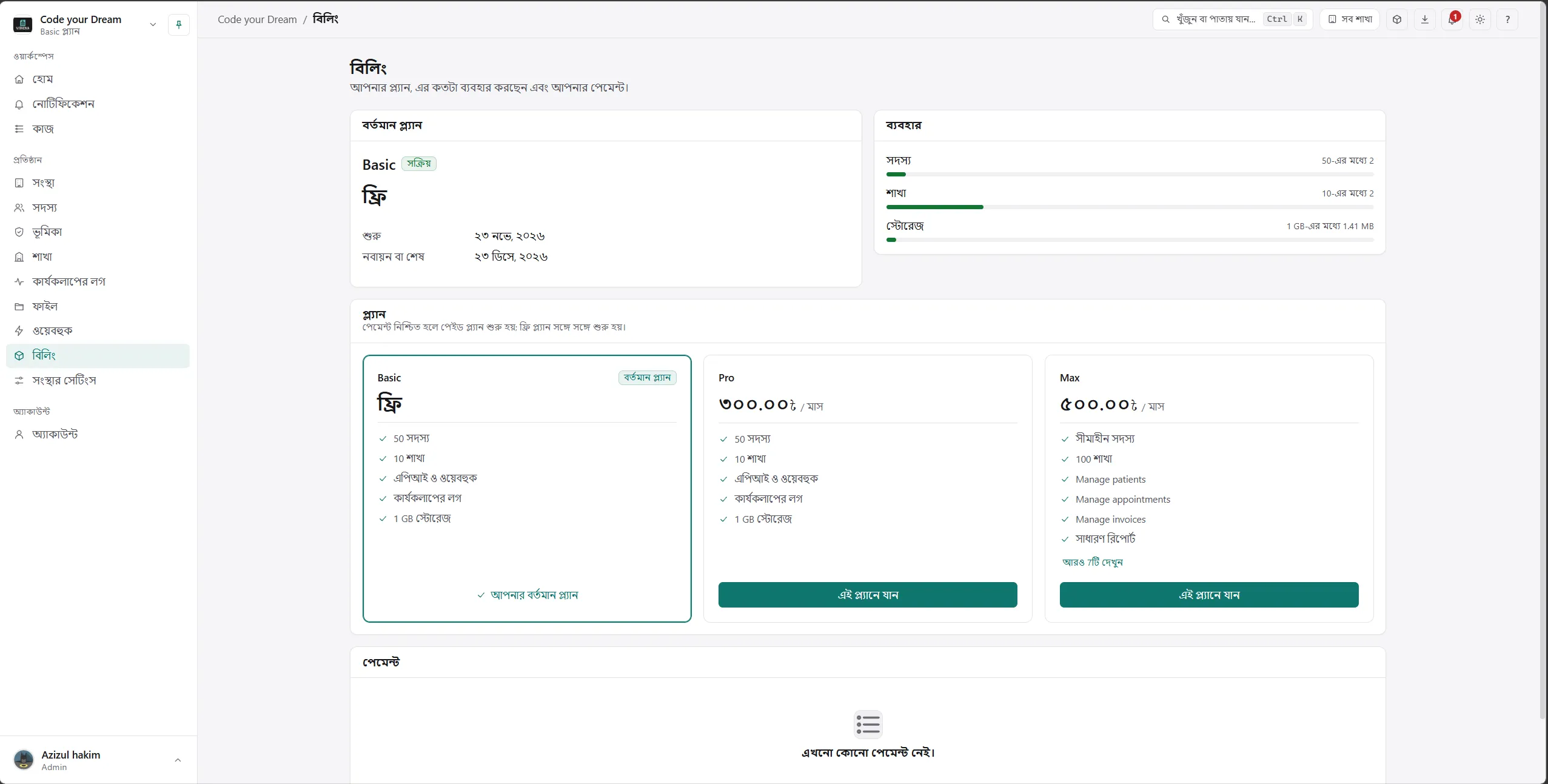
| Billing | /org/billing |
the current plan, usage against limits, plans to switch to, checkout and payments | billing.view |
| Org settings | /org/settings |
preferences grouped by area (notifications, e-mail branding, security, privacy) and ownership transfer | — |
| Account | /settings/… |
profile and photo, password, two-factor, signed-in devices, notification preferences, connected AI apps, data export and account deletion | — |
A page’s buttons check finer permissions: on Branches, New branch needs branch.create, and
a member with only branch.view.all sees each branch as read-only details instead of a form.
The full list of permissions is in the permissions reference.
Branches in the top bar
An organization with more than one branch gets a branch switcher in the top bar. A member works in one branch at a time, and branch-scoped lists (files, activity, your own modules) show that branch; All branches shows everything the member may see. The choice is stored on the account, so it follows the member to another device. See Tenancy.
Plan limits
Plans limit members, branches, storage and any feature you add. When an action would cross a limit
the API answers 402 with the limit in meta, and the app explains it and links to Billing. A
banner in the shell says when the plan is about to expire or needs payment. See
Billing.
Getting started checklist
New organizations see a checklist on Home: verify your e-mail, invite your team, turn on
two-factor, choose a plan, add your logo. Each item completes itself when the work is done, and
the owner can hide the card. Change the items in src/components/GettingStarted.tsx.
Announcements
Banners at the top of the shell carry announcements from your staff (a notice, a warning or a promotion, with an optional button). Members can close them, and staff see views, clicks and closes per organization. See Staff console.


Built and maintained by Innovix Matrix System
A software studio building custom software, web platforms and mobile apps. We use this kit for our own products, and we can help you ship yours on it.
© 2026 Innovix Matrix System. IMS Go SaaS Kit v0.2.0.